




FAQ: Proposal Evaluation System (PES) for Panelists
 Table of Contents
Questions
-
What is the Proposal Evaluation System?
The Proposal Evaluation System (PES) is the replacement for the Interactive Panel System (IPS) module in FastLane. PES improves the user experience through modernized, intuitive, and easy to navigate interfaces and enhanced functionalities for the preparation and submission of reviews by panelists, to support panel meetings, and for real-time collaboration on panel summaries.
-
How do I access PES?
To access PES:
- Open Research.gov using one of the recommended browsers (Chrome, Edge, Firefox, or Safari) and select Sign In at the top of the page.
- Enter your NSF ID and password, InCommon credentials, or Login.gov credentials. You will be navigated to the Research.gov homepage.
- Click the Reviews, Panels and Other Meetings link under Reviews and Meetings.
- Select the Panels and Meetings tab.
- Select a Meeting ID.
- Review the Merit Review Principles, Merit Review Criteria, and Privacy Act and Public Burden Statements and click Accept and Continue.
- Click the Proposal Evaluation System link under the Day(s) of the Meeting and Following header.
- If you see an error message after clicking the Proposal Evaluation System link, it could be that you have not yet completed the one-time process to provide reviewer profile information. On the Research.gov homepage, click the Provide Reviewer Profile Information link under Reviews & Meetings to initiate the process. Please look through your emails for a message with the subject "NSF - Action Needed: Provide Reviewer Profile Information." If you cannot locate the email, please contact the NSF IT Service Desk at 1-800-381-1532 (7:00 AM - 9:00 PM ET; Monday - Friday except federal holidays) or via rgov@nsf.gov to have the email re-sent.
- After clicking the Proposal Evaluation System link, you can access your panel. You may need to enable pop-ups by adjusting your browser settings so that you can access the full functionality of PES.
- If you have any issues accessing PES after successfully signing into Research.gov, please first try clearing your browser cache and cookies, restarting your computer, and trying again. If you are still encountering access issues, please try using a different browser such as Microsoft Edge. If you have access to another device such as an alternative computer, smartphone, or tablet, you may also be able to access PES to confirm that the issue is limited to browser settings. If you are still experiencing access issues, please contact the NSF IT Service Desk for assistance at 1-800-381-1532 (7:00 AM - 9:00 PM ET; Monday - Friday except federal holidays) or via rgov@nsf.gov. Please have your panel ID, NSF ID, browser, and browser version to share with the technician for troubleshooting.
-
Do all NSF panels compose reviews or do some only prepare the panel summary?
Some panels at NSF are set up to only prepare the panel summary with input from the panel discussion. Individual proposals in a panel may have reviews prepared by reviewers not on the panel. If you are participating on this type of panel, you can disregard the instructions in this document specifically for those preparing panelist reviews.
-
How do I prepare my own panelist review?
To prepare your review as a panelist:
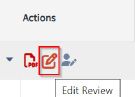
- From the Proposal List page, click the Edit Review icon in the Actions column (see Figure 1).
 Credit: National Science Foundation
Figure 1: Actions on Proposal List Page - You will be navigated to the Panelist Review page where proposals for review are listed together with the review criteria for the specified panel. After you review each proposal, you will use PES to submit rating(s), strengths, and weaknesses for the Intellectual Merit and Broader Impacts, Additional Solicitation-specific Review Criteria if applicable, and a summary statement prior to the panel meeting.
- From the Proposal List page, click the Edit Review icon in the Actions column (see Figure 1).
-
What are the features of the Panelist Review page?
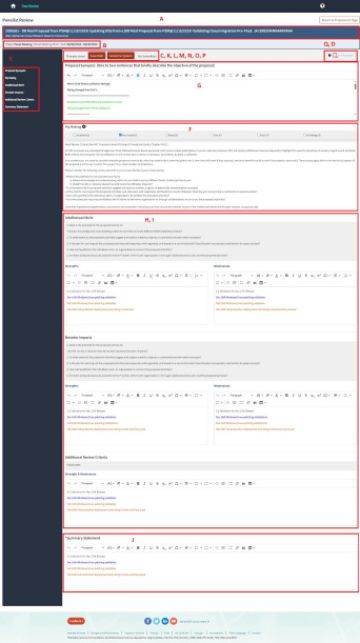
The features identified by letters in the example Panelist Review page screenshot in Figure 2 are described below:
A. The proposal banner at the top of the page lists the Proposal ID, Proposal Title, Principal Investigator (PI) Name, and Organization for each proposal.
B. The Panel Stage and Panel Meeting Start - End Dates are listed under the proposal banner.
C. The Save Draft button saves any review and/or ratings in your workspace without being visible to others. The Submit to System button uploads reviews and/or ratings to the system and makes them visible to others. If you change any text and/or ratings on your proposal reviews, this will revert your reviews to drafts and they will not display for NSF staff or others. You must click the Submit to System button to re-upload them into the system again and to make them visible to others. If you save your review in your workspace using the Save Draft button but do not submit it, the following warning message will be generated: Your review has been saved, but it is not yet submitted to the system. Please click the 'Submit to System' button.
D. The Full Proposal PDF icon option can be used to open the full proposal PDF in a new tab and download the proposal to your downloads folder. You can also access the proposal PDF from the Proposal List page when first accessing PES. Depending on your browser settings, you might see a one-time message in the browser to approve opening the document in a new tab.
E. The Quick Navigation menu on the left side of the Panelist Review page will take you to the selected PES section without having to scroll up and down.
F. The My Rating section is used to rate each proposal by selecting one or two ratings from the six options. The system will allow the selection of either one rating or a maximum of two ratings. The merit review criteria to be considered when evaluating the proposal are displayed in this section. Rating definitions are located in an info tip next to the header.
G. The Proposal Synopsis box is provided for the reviewer to add an optional, brief synopsis of the proposal. This box can be left blank.
H. The Intellectual Merit, Broader Impacts, and Additional Solicitation-specific Review Criteria sections include questions to consider for your review.
I. The Strengths and Weaknesses text boxes are where you enter your proposal feedback for the Intellectual Merit, Broader Impacts, and Additional Solicitation-specific Review Criteria sections. There is no character limit in the Strengths and Weaknesses text boxes. Intellectual Merit and Broader Impacts are required fields and must be completed to successfully submit the review. NSF managing program staff can also include Additional Solicitation-specific Review Criteria. If the Additional Solicitation-specific Review Criteria section is included, reviewers will see it as the t itle and the description followed by a separate text box for reviewers to enter.
J. The Summary Statement text box is where you provide a synopsis of the overall strengths and weaknesses of the proposal and your suggested recommendations. There is no character limit in the Summary Statement text box. You must complete the Summary Statement text box to successfully submit the review.
K. The Save Draft button at the top of the page is to store the text you have entered in the system so that it is available only to you before using the Submit to System button to make the text visible to others.
L. The Submit to System button at the top of the page is to save and submit your review. After clicking the Submit to System button, the reviews and/or ratings will update in the system and will be visible to others.
M. If you change any text and/or ratings on your proposal reviews, this will revert your reviews to drafts and they will not display for NSF staff or others. You must click the Submit to System button to re-upload them into the system again to overwrite the previous version and make them visible in PES. The review will be displayed on the Proposal List page and under the Panelist Review section when the corresponding proposal is expanded only after you click the Submit to System button.
N. If you would like to remove a review from a proposal, click on Edit review, remove all the review text added, uncheck the rating, and then click the Submit to System button. This will delete all the review data you submitted for a specific proposal. Panelist reviews and ratings can be updated until the panel is closed.
O. The review status is displayed under the Submit to System button. When the review has been saved but you have not clicked the Submit to System button, the status will be “Not Submitted.” Once you have completed all the required fields and clicked the Submit to System button, the status will be updated to “Submitted.” There is no limit to the number of times that the Submit to System button can be clicked. Panelists can click Submit to System once or as many times as necessary when preparing reviews and each time the rating and/or updated review will be uploaded into the system and will be visible to others.
P. PES auto-saves your changes every 10 seconds and displays “Saving Changes” while saving. Once saved, you will see the status updated to “Changes saved.”
Q. Hover over the info tip icon to see brief informative text about submitting a review.
 Credit: National Science Foundation
Figure 2: Layout overview of the Panelist Review page -
How does a panelist view the reviews of others?
Once managing Program Officer(s) releases the reviews of other panelists and/or ad hoc reviewers for viewing:
- Navigate to the Proposal List page. Based on the panel rules established by the managing NSF Program Officer(s), all the proposals may be visible on the Proposal List page.
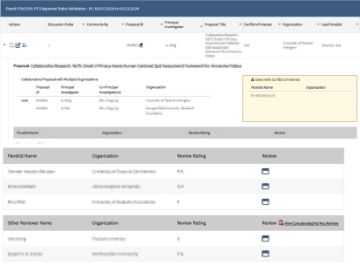
- Click the caret to the left of a proposal or anywhere in the row to expand it (see Figure 3). The expanded row displays columns for Proposal ID, PI, co-PIs, PI, and Organization. Below are rows displaying the review rating and link to the review from other panelists Ad hoc reviews and reviews from panelists in other panels, if any, are displayed in the table below the panelist reviews. The Review column on the right side allows you to view the review for each panelist depending on how the managing NSF Program Officer(s) has set the panel rules. For example, if ‘No Viewing Until Meeting Starts’ is set in the panel rules, then the rating and review will not be visible until the first day of the panel. For some panels, panelists are not permitted to see the reviews of other panelists at all. Please keep in mind that you may need to select a rating and submit a review for a specific proposal before you are able to see the review ratings of the other panelists for the proposal.
 Credit: National Science Foundation
Figure 3: View of other reviewers' reviews
-
What do the Lead Panelist and Scribe do?
The Lead Panelist is typically the panelist who introduces the proposal to the panel. The Scribe is appointed by the managing NSF Program Officer(s) as the panelist who drafts, submits for comment, collaboratively edits, and accepts/declines changes to the draft panel summary from other panelists. You can view the Lead Panelist and Scribe assignments in the Lead and Scribe columns on the Proposal List page, if enabled. The My Role column on the Proposal List page shows the role for each individual panel participant for each proposal, such as Primary, Secondary, or Tertiary.
-
How does a Scribe submit the panel summary?
To prepare and submit a panel summary, the Scribe follows these steps:
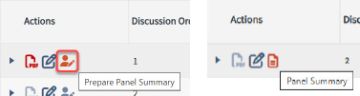
- Select the Prepare Panel Summary icon from the Actions column on the Proposal List page on the day(s) of the panel (see Figure 4). Other panelists will see the text "Panel Summary" with the document icon (see Figure 5).
 Credit: National Science Foundation
Figures 4 & 5: Action for Scribe on proposal list page, and icon for panelist on proposal list page - On the Panel Summary screen, you will see the panel summary text box with the pre-populated panel summary template if the NSF managing Program Officer has added one for the panel (see Figure 6). Only the Scribe is able to edit the template subtitles as the panel summary is prepared. The Scribe can select a recommendation and enter and/or edit the panel summary, depending on the panel rules set by the managing NSF Program Officer(s).
- To save changes without submitting, the Scribe clicks the Save Changes button at the top of the page, which triggers the auto-save functionality for the Panel Summary.
- To submit the panel summary to the system for comments, the Scribe clicks the Submit for Comments button at the top of the page.
- Once the Scribe clicks the Submit for Comments button, the draft panel summary will become available for other panelists to collaboratively edit and provide comments. The stage of the proposal will also change from "Not Started" to "Ready for Panelist Comments."
- The Scribe can submit the panel summary without a selected recommendation. The recommendation is independent of the panel summary and can be submitted at any time. Note: Once the panel summary has been saved, the Scribe can edit and submit it for comments multiple times up until the cutoff date for panel summary changes. Scribes can ask the managing Program Officer(s) for this date.
 Credit: National Science Foundation
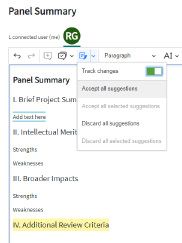
Figure 9: Accept all suggestions button
- Select the Prepare Panel Summary icon from the Actions column on the Proposal List page on the day(s) of the panel (see Figure 4). Other panelists will see the text "Panel Summary" with the document icon (see Figure 5).
-
How does a panelist view the panel summary?
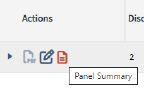
Panelists can view the panel summary by selecting the Panel Summary icon from the Actions column on the Proposal List page on the day(s) of the panel (see Figure 7).
 Credit: National Science Foundation
Figure 7: Access of Panel Summary for Panelists -
How does a panelist use the editing tool bar feature (CKEditor) to track changes and add comments on the panel summary?
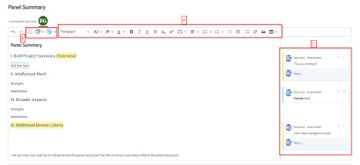
To use the CKEditor feature (see Figure 8):
- Use the tool bar at the top of the panel summary page to format the panel summary. (“A” in the screenshot)
- Highlight panel summary text, click the 'Comment' icon (plus sign located on the upper left of the toolbar) to add a comment and then click on the green check to submit. The Scribe can also enable/disable track changes in the panel summary by clicking the Track Changes icon. It is also possible to view comments previously entered and marked resolved by the Scribe. ("B" in the screenshot)
- "C" in the screenshot shows how comments display on the panel summary. Comments added and any changes made to the panel summary are shown in the panel summary text box on the right side of the panel summary page until they are resolved by the Scribe. Any participants in the panel who have access to the proposal can make suggested edits to the panel summary, but only the Scribe can accept or reject changes. Only accepted edits are incorporated into the panel summary submitted to NSF. Working comments are not part of the official record retained in NSF systems. The scribe can accept all suggestions by clicking the track changes button (button located on the top left part of the toolbar) and clicking 'accept all suggestions' (see Figure 9).
 Credit: National Science Foundation
Figure 8: Access text editor tools, how to provide comments.
Credit: National Science FoundationFigure 9: Accept all suggestions button
-
How does a panelist agree with the content of the panel summary?
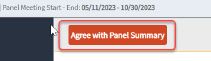
Once the panel summary is ready for agreement by the assigned panelists, the Agree with Panel Summary button at the top of the panel summary page will be visible (see Figure 10). This button will display for assigned panelists as soon as the Scribe has clicked the Submit for Comments button.
 Credit: National Science Foundation
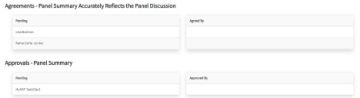
Figure 10: Agree button for assigned panelists. - The assigned panelists required to agree with the panel summary are shown in the Pending column in the Agreements section of the page (see Figure 11).
- Once a panelist clicks the Agree with Panel Summary button, the panelist's name will be displayed under the Agreed By column.
- Assigned panelists can complete the agreement in any order, but everyone on the agreement list must agree on the panel summary. Assigned panelists with roles must approve the summary first and then the authorized panelist(s) (such as the Scribe or the assigned panelists) or other NSF staff can approve the panel summary. The approval button will not appear for the authorized panelist(s) or other NSF staff until all the assigned panelists agree. If the agreement is not done by all panelists with a role in reviewing the proposal, then the panel summary will not be sent for approval by the authorized panelist(s) or other NSF staff.
 Credit: National Science Foundation
Figure 11: Lists all Panelist Primary, Panelist Secondary, etc. under pending and agreed panelists will move to the “Agreed By” column. -
How do I assign a recommendation to a proposal?
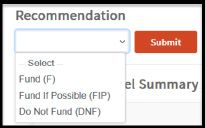
Generally, the Panel Summary page display includes the recommendation scale to choose from. The Scribe or other authorized user based on the panel rules set by the managing NSF Program Officer(s) may click the Recommendation field to view/select a choice from the drop-down menu and then click the Submit button. The Submit button will update the recommendation but not the panel summary. The recommendation is independent of the panel summary and can be submitted at any time.
Most panelists have read-only access to the Recommendation drop-down menu. Managing NSF Program Officer(s) may authorize a person other than the Scribe to provide recommendations for the panel. That person also will have access to the drop-down menu in the Recommendation field (see Figure 12).
 Credit: National Science Foundation
Figure 12: Recommendation scale -
What do I do if I get an error message that says "Resource – not found – the Proposal Evaluation System encountered an error?"
First, please clear your browser cache and cookies and try again. If that does not resolve the issue, please try using a different recommended browser such as Microsoft Edge, Safari, Firefox, or Chrome. Alternatively, if you have access to another device, you may also be able to access PES to confirm that the issue is limited to browser settings on the original device. If you are still experiencing access issues, please contact the NSF IT Service Desk for assistance at 1-800-381-1532 (7:00 AM - 9:00 PM ET; Monday - Friday except federal holidays) or via rgov@nsf.gov. Please have your panel ID, NSF ID, browser, and browser version to share with the technician for troubleshooting.
-
Who do I contact for PES system-related questions or assistance?
For PES system-related questions or assistance, please contact the NSF IT Service Desk at 1-800-381-1532 (7:00 AM - 9:00 PM ET; Monday - Friday except federal holidays) or via rgov@nsf.gov. Programmatic questions from panelists should be directed to the managing NSF Program Officer(s) for the panel.