




FAQ: Using SciENcv
Use of SciENcv to prepare biographical sketch and current and pending (other) support documents is mandatory.
 Table of Contents
General SciENcv Questions
-
What training resources are available to guide users on how to use SciENcv?
The following materials are available to guide NSF users through the preparation ofthe NSFdocuments available in SciENcv:
- NSF Biographical Sketch Video Tutorial
- NSF Current and Pending (Other) Support Video Tutorial
- SciENcv Help Manual with NSF-specific sections (including screenshots and step-by-step instructions)
- Implementing the Common Forms for the Biographical Sketch and Current and Pending (Other) Support (April 2024 NSF/NIH Webinar and Demo)
- SciENcv Demo (demo starts at 38:25 minute mark) (Spring 2024 NSF Grants Conference)
-
How do I access SciENcv?
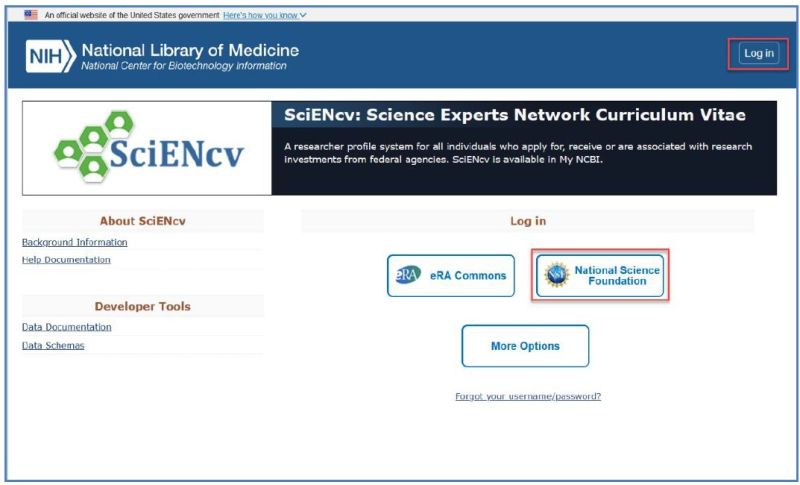
Users can access SciENcv by visiting the National Library of Medicine.
-
Do I need to create a SciENcv/National Center for Biotechnology Information (NCBI) account?
No. Users do not need to create SciENcv/NCBI accounts to prepare and generate their NSF documents. While there are several ways to log into the system, NSF encourages users to sign in to SciENcv with their Research.gov credentials (NSF ID and password).
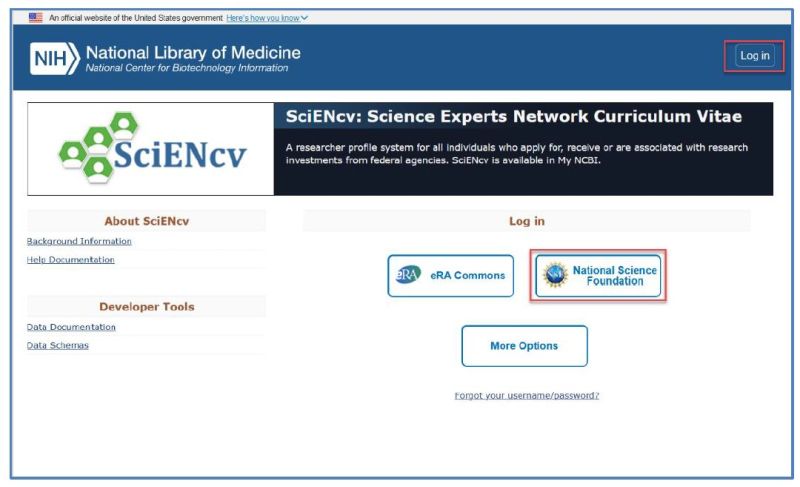
Users selecting the "National Science Foundation" login option, highlighted above, will be directed to sign in via Research.gov. Users will be automatically redirected back to SciENcv after sign-in. Users signing into Research.gov with organization-issued credentials (InCommon Federation participants) or Login.gov credentials will be prompted to first link their account to their NSF account in Research.gov.
For assistance to sign into Research.gov or to link InCommon and Login.gov accounts:
- Users can contact the NSF IT Service Desk at 1-800-381-1532
(7:00 AM - 9:00 PM ET; Monday - Friday except federal holidays) - Email rgov@nsf.gov
- If Research.gov is unavailable during planned maintenance, users can log into SciENcv via an alternative method by selecting the "More Options" button.
- Users can contact the NSF IT Service Desk at 1-800-381-1532
-
Who should I contact if I can't sign into SciENcv using my Research.gov credentials (NSF ID and password)?
Please verify that you have registered in Research.gov for an NSF ID and password and that your credentials are correct. Use the links below if you have forgotten your NSF ID or password:
- Forgot ID
- Forgot Password
- If you need assistance to sign into Research.gov or to link your organization-issued (InCommon Federation participants) or Login.gov accounts with your NSF ID,
- Please email the NSF IT Service Desk at rgov@nsf.gov
- Call Service Desk at 1-800-381-1532
(7:00 AM - 9:00 PM ET; Monday - Friday except federal holidays)
-
Who do I contact if I have questions?
For NIH SciENcv technical questions or immediate assistance, please contact the NIH Help Desk (7:30 AM – 5:30 PM Eastern Time, Monday through Friday except for federal holidays):
- Email the NIH Help Desk: NLMSciencv@mail.nih.gov
- Create a ticket
For NSF technical questions or immediate assistance unrelated to SciENcv, please contact the NSF IT Service Desk (7:00 AM – 9:00 PM Eastern Time, Monday through Friday except for federal holidays):
- Email the NSF IT Service Desk: rgov@nsf.gov
- Call the NSF IT Service Desk: 1-800-381-1532
- NSF policy-related questions should be directed to policy@nsf.gov
-
How do I access the SciENcv portal after I've signed in?
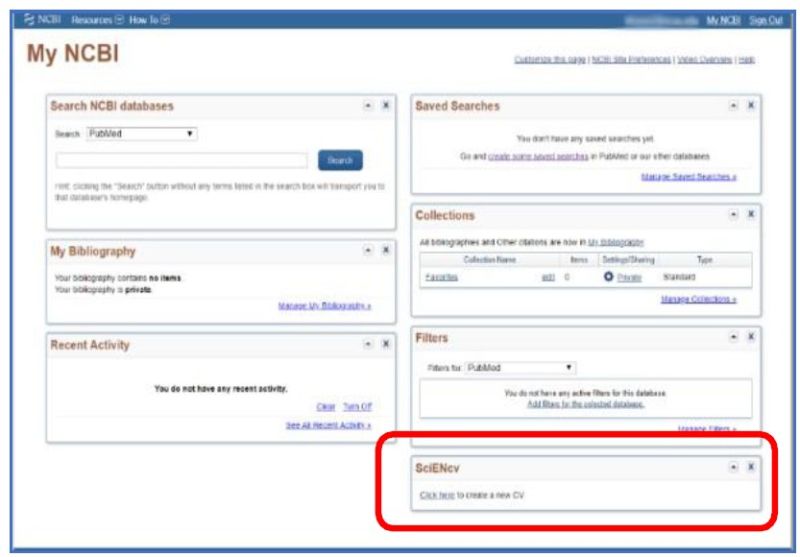
After signing in, users see either the My NCBI page (below) or the SciENcv documents page. On the My NCBI page, the link under SciENcv navigates to the SciENcv documents page. The My NCBI page content may differ if the user has customized the page.
The SciENcv documents page is shown.
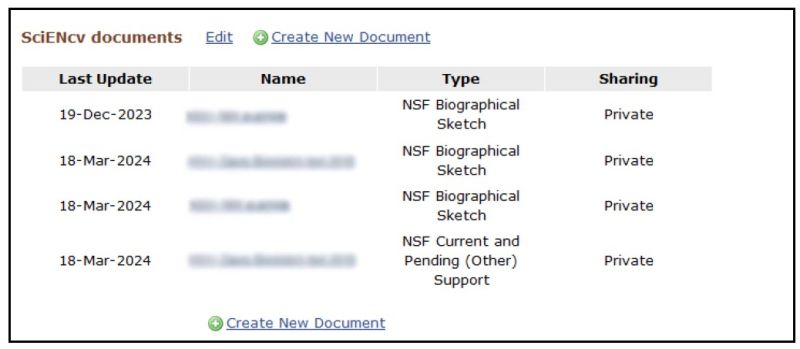
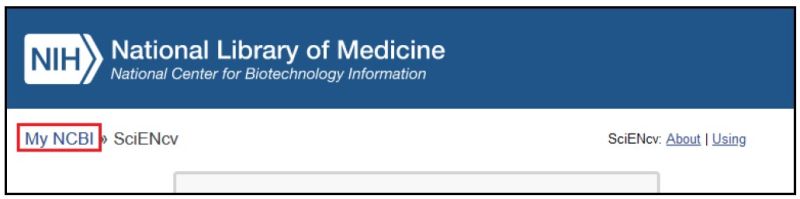
The My NCBI link at the top of the page navigates to the My NCBI page.
-
How do I create and manage my SciENcv documents?
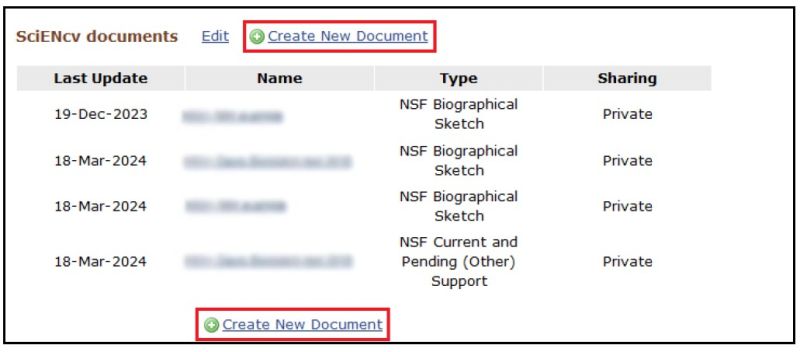
The Create New Document links on the SciENcv documents page navigates to the Create a New Document page.
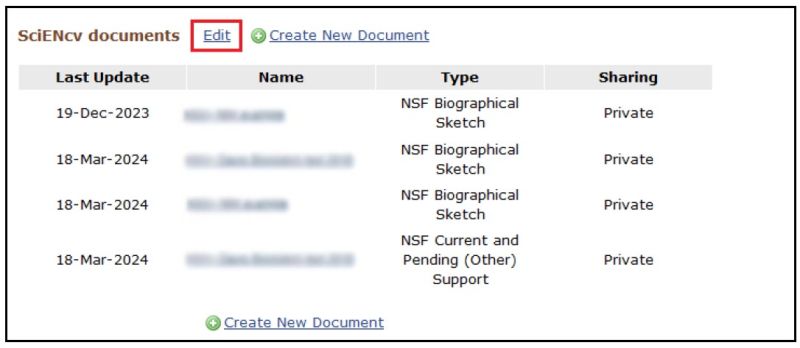
Edit an existing document by clicking its name. Edit or delete an existing document by clicking the Edit link.
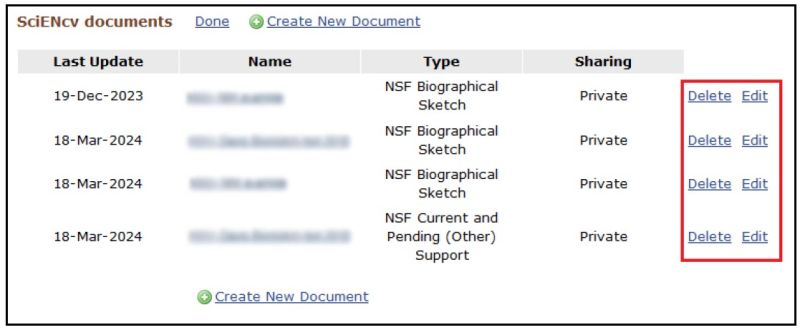
Edit or delete an existing document.
-
Do I go to the same module to create both my biographical sketch and my current and pending (other) support documents?
Yes. Users create and manage their biographical sketch and current and pending (other) support documents in the same SciENcv documents section of the application.
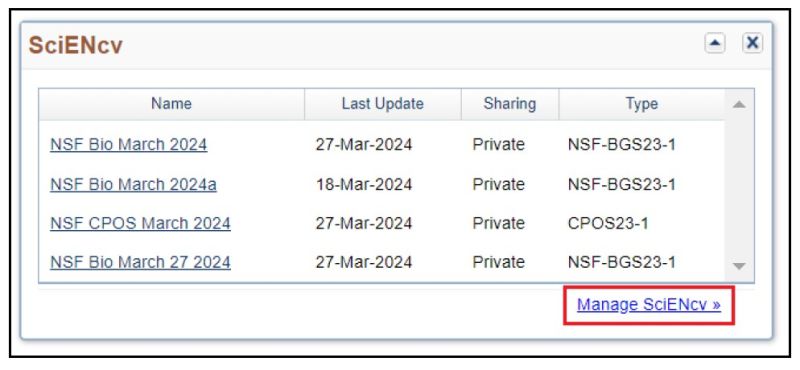
After clicking "Manage SciENcv" on the My NCBI page, users can click "Create New Document" to prepare new NSF biographical sketch or current and pending (other) support documents.
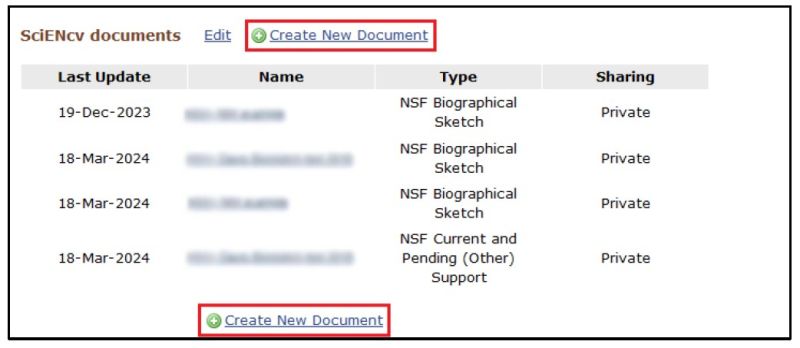
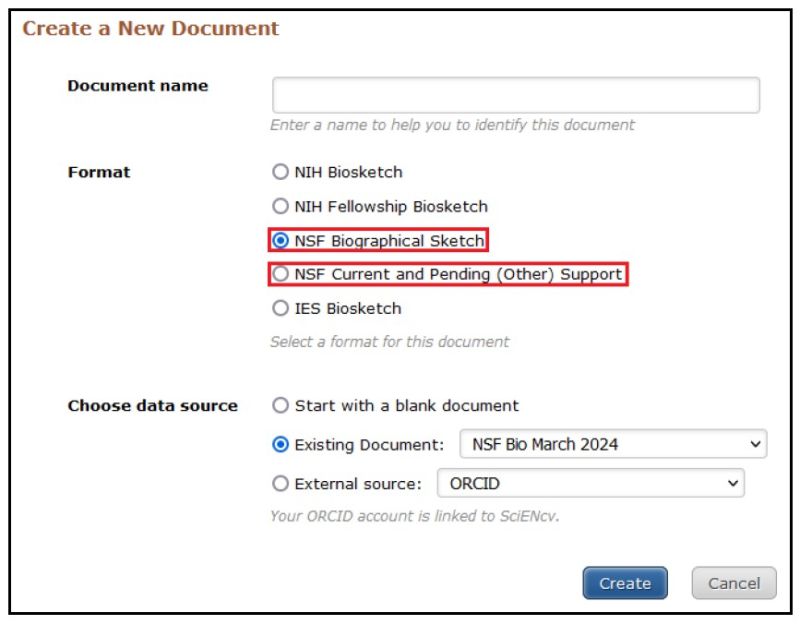
Users select which document type to create. The "NIH Biosketch" is selected by default so be sure to select the appropriate document type (i.e., NSF Biographical Sketch or NSF Current and Pending (Other) Support).
-
Can I delegate access to someone assisting me with document preparation?
Yes. The My NCBI account holder can add one or more delegates for their My NCBI account. Once a delegate has accepted their invitation, the delegate(s) can view, edit, and create documents in the original account holder's SciENcv, as well as edit the account holder's My Bibliography information.
To send a delegate request:
- Log in to your My NCBI account.
- Select your username in the top-right corner of the screen and select Account Settings.
- On the NCBI Account Settings page, under "Delegates," select "Add a delegate".
- Enter your delegate's email address and select "OK".
To accept a delegate request:
- Log in to your My NCBI account.
- Check your email for the delegate request. If you haven't received the request email, be sure to check your spam folder – the email comes from myncbi@ncbi.nlm.nih.gov.
- Use the link in the delegate request email to accept and confirm the delegation.
To see if a delegate has accepted your request:
- Log in to your My NCBI account.
- Select your username in the top-right corner of the screen to access the Account Settings page.
- If you have sent one or more delegate requests, you will see a table in the Delegates section.
In this example, "(Awaiting confirmation)" appears because the delegation request has not yet been accepted. The delegate may need the instructions on how to accept a delegate request.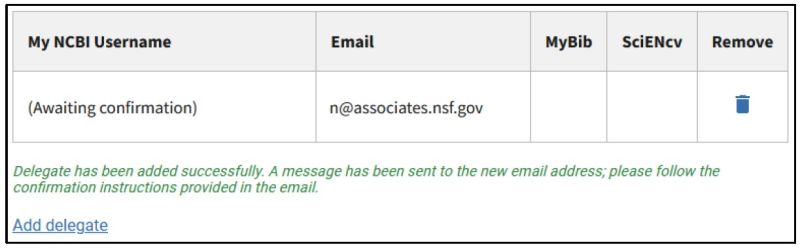
When the username appears, the request has been accepted.
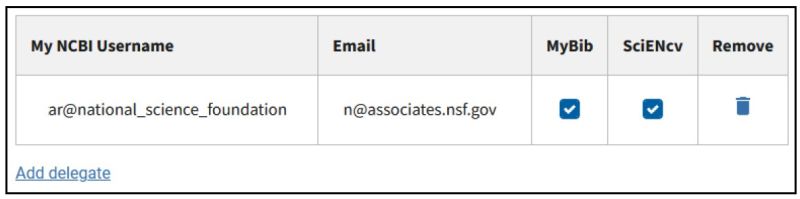
To control what a delegate has access to:
- Log in to your My NCBI account.
- Select your username in the top-right corner of the screen to access the Account Settings page.
- Use the table in the delegates section to control what your delegates can access.
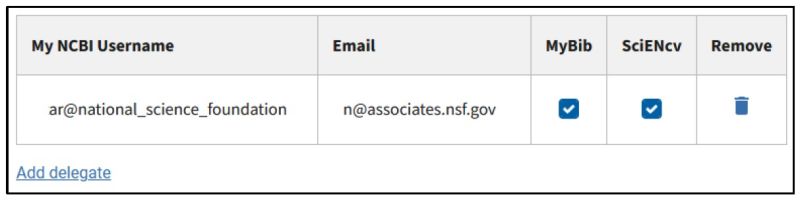
If the "MyBib" box is checked, the delegate can view and edit My Bibliography and Other Citations collections. If the "SciENcv" box is checked, the delegate can create, view, and change the SciENcv products. The Public or Private settings on the My Bibliography or SciENcv screens do not affect whether your delegate can view and make changes to these resources. To remove a delegate, click the trash can icon under Remove. To limit delegate access, use the checkboxes as appropriate.
To access a delegator's SciENcv:
- Log in to your My NCBI account.
- If you have been granted access to your delegator's My Bibliography, you will see those items listed in your collections list.
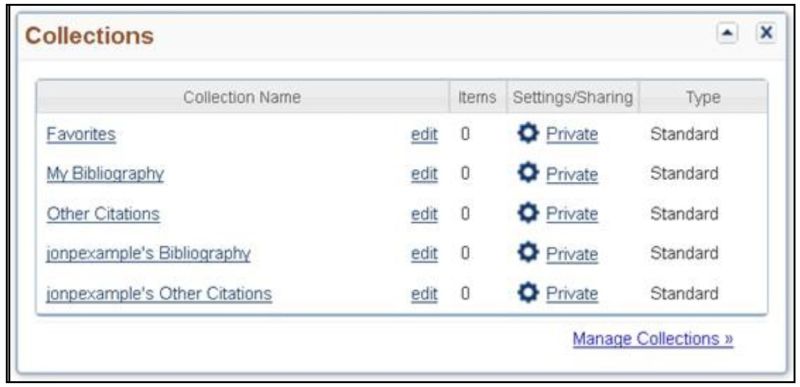
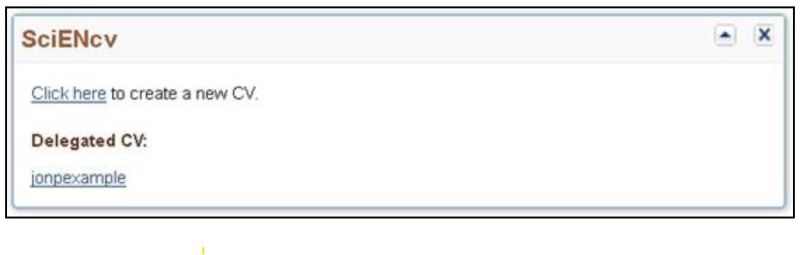
- If you have been granted access to your delegator's SciENcv, you will be able to access it from your SciENcv portal:
-
Can a delegate certify and generate the delegator's PDF files in SciENcv?
A delegate cannot certify a document on the delegator's behalf and cannot generate and download a PDF file that has not yet been certified. When the delegate clicks DOWNLOAD PDF, the Certification Required message appears for the biographical sketch or current and pending (other) support document with the delegator's email address. The delegate clicks SEND NOTIFICATION to notify the delegator by email that the file requires certifications.
The delegator must log in to SciENcv and certify each document created for them by a delegate. When the delegator clicks DOWNLOAD PDF, a Certification message appears.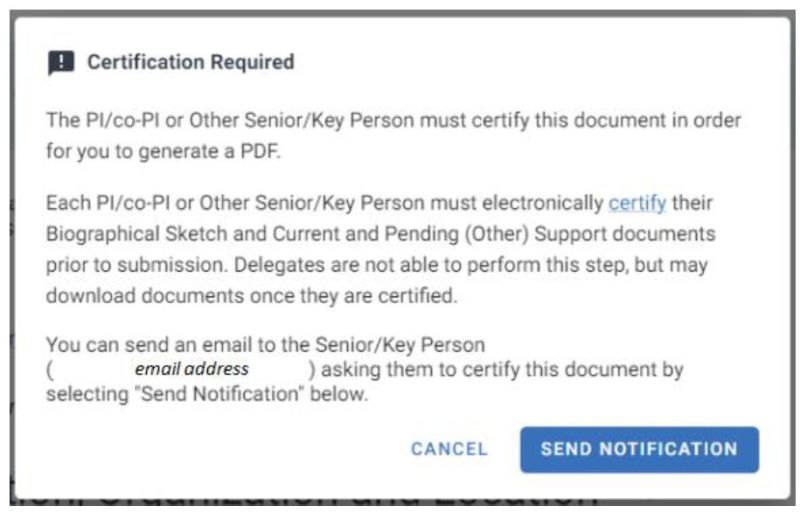
This message appears for the biographical sketch document.
This message appears for the current and pending (other) support document.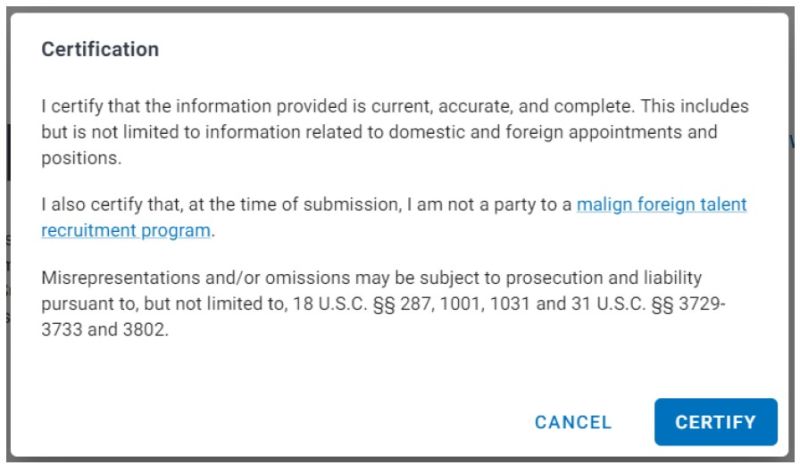 A delegate can download the delegator's documents that have been previously certified as PDF files and will not see the Certification Required message.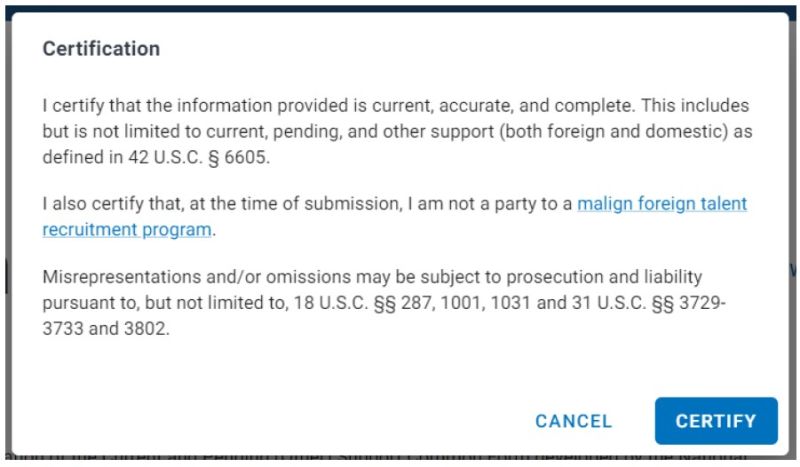
-
What actions are allowed after downloading a certified PDF file from SciENcv?
A generated PDF file can be renamed. However, a file must not be exported or opened and re-saved in another application. This would affect the metadata of the file so that it could not be uploaded to Research.gov and Grants.gov.
-
What should I do if I see an invalid signature notification banner when I view my proposal in Adobe Acrobat?
NSF does not allow for a digital signature on biographical sketch and current and pending (other) support documents. The notification banner does not prevent proposal submission or review, and no action is required by proposers. An example of the banner is shown.

-
What should I do if I need to use special characters, but the system does not recognize these characters?
If your special characters such as Greek characters are rejected, you can spell out each character (e.g., type "omega" instead of "Ω").
-
How do I link my ORCID iD to SciENcv to populate my biographical sketch?
- While logged in to SciENcv, click your login ID in the upper right corner of the screen.

- Select Account Settings, and under Linked Accounts select Add account.
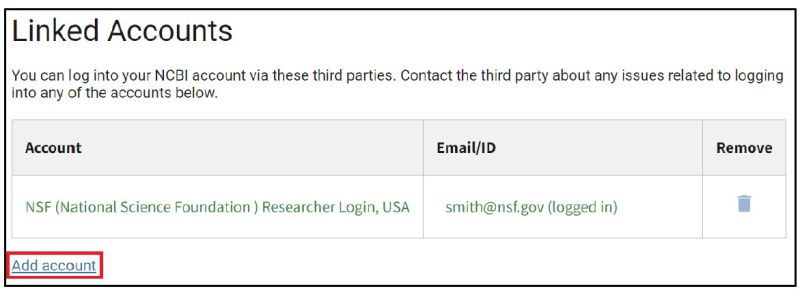
- Search on "orcid" and select ORCiD.
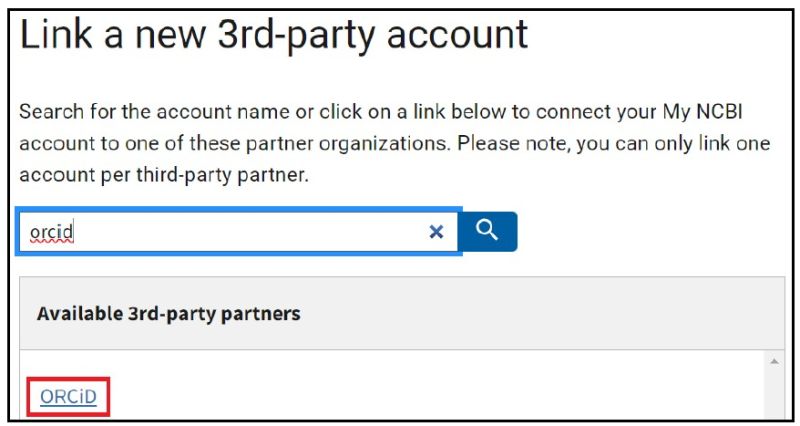
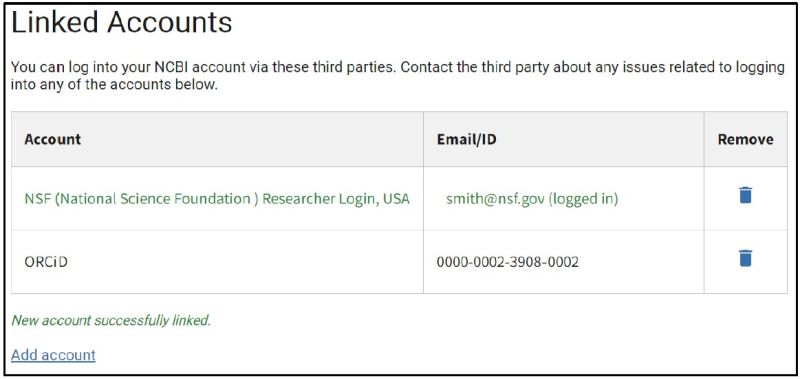
When you are prompted, log in to your ORCID account. The system will take you back to SciENcv and the link will appear with a success message.
- While logged in to SciENcv, click your login ID in the upper right corner of the screen.
Biographical Sketch Questions
-
Can I reorder the product citations in my biographical sketch?
Yes. Users can reorder their products as desired by dragging and dropping the citations. The generated PDF will reflect the order displayed on the screen.
-
Although there is no longer a three-page limit for the biographical sketch, the publication citations I imported into my SciENcv biographical sketch cause my document to be very long. What options do I have to generate a shorter document?
Users importing publication citations to populate the products sections of the biographical sketch have the option of manually editing these citations. The list of authors' names can be edited and "et al." used in lieu of including the complete list of names.
- In Section C. Products, click SELECT RELATED PRODUCTS.
- Click "MANAGE MY BIBLIOGRAPHY"
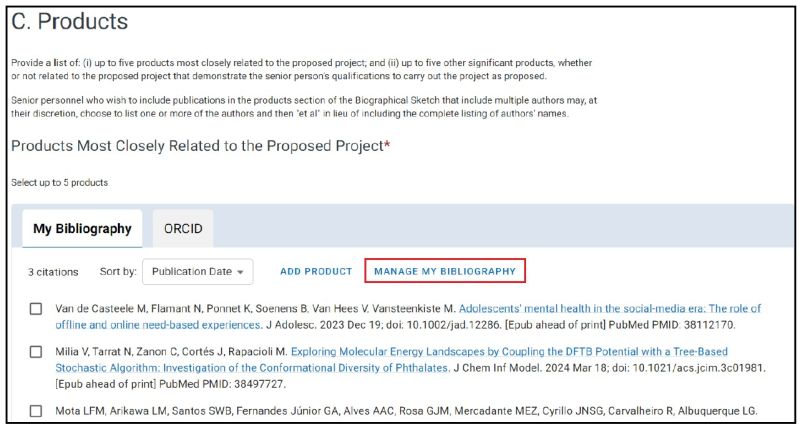
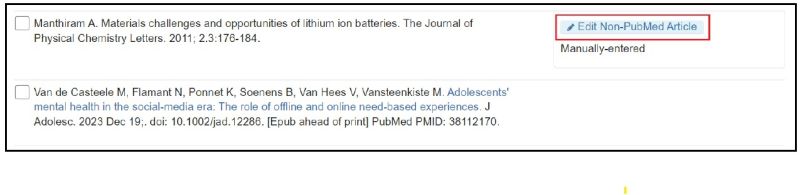
- Go to the 'My Bibliography' page and click the 'Edit Non-PubMed Article' button next to the manually entered citation to edit the list of authors' names.NSF instructions for the biographical sketch, including citation guidance, are available in Proposal & Award Policies & Procedures Guide (PAPPG) Chapter II.D.2.h(i) and on the biographical sketch page.
-
Can I reorder the appointments in my biographical sketch?
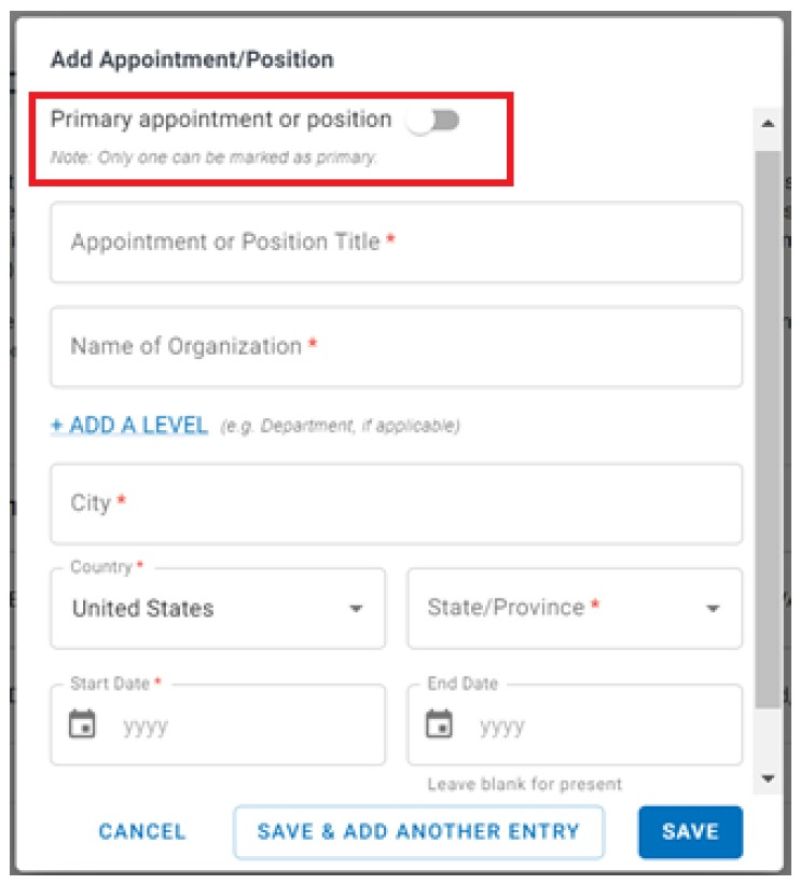
Professional preparation and appointments must be provided in accordance with PAPPG Chapter II.D.2.h(i)(a)(4). A user with more than one current appointment or position can select a primary appointment or position.
-
How do I submit Synergistic Activities?
The Synergistic Activities section has been removed from the biographical sketch. This information must now be submitted as a separate, one-page document by individuals designated as senior/key persons as part of the senior/key personnel documents in Research.gov and Grants.gov. See PAPPG Chapter II.D.2.h(iv) on Synergistic Activities.
-
Will non-compliant biographical sketch documents receive an error message in Research.gov and Grants.gov?
Yes. Biographical sketch documents are tagged with identifiers indicating they were prepared in SciENcv using the proper version. Biographical sketch documents not prepared in SciENcv using the proper version will trigger a compliance error message that will prevent document upload in Research.gov and Grants.gov.
-
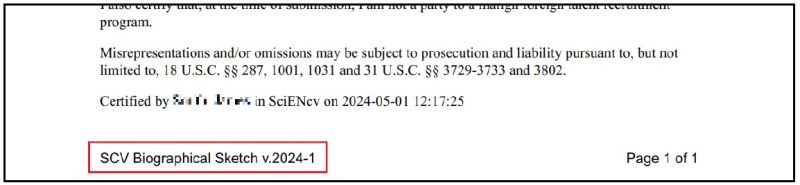
How do I determine the SciENcv biographical sketch PDF file version and revision date so I can ensure that I am uploading the correct version?
The biographical sketch PDF file shows the version at the bottom of the page followed the form revision date in parenthesis. The v.2024-1 version is required for proposals submitted or due on or after May 20, 2024.
-
Can biographical sketch PDFs generated in SciENcv prior to May 20, 2024, be uploaded in Research.gov and Grants.gov on or after May 20, 2024?
For proposals submitted to Research.gov and Grants.gov on or after May 20, 2024, the uploaded biographical sketch PDF must be the v.2024-1 version.
-
Will SciENcv automatically convert my old biographical sketch to the new version when I open it?
No. SciENcv will not automatically convert old biographical sketches to the 2024-1 version. A warning banner will appear when an outdated version of a biographical sketch is opened explaining how to copy the old information to the new version of the form.

Current and Pending (Other) Support Questions
-
In the current and pending (other) support section, I am unable to enter "0" as a value in the "Person-Months Committed" field for one of my entries. How should I proceed?
Individuals should only include projects to which they are committing time/person months. Please remove this entry from your current and pending (other) support documentation and re-generate your PDF document so your proposal contains accurate support information. For additional information, see the NSF-issued set of FAQs on Current and Pending (Other) Support.
-
In the current and pending (other) support section, how should I document the "Person-Month(s) or (Partial Person-Months) Per Year Committed to the Project" for sources of support/in-kind contributions that operate on a fiscal year calendar?
Proposers should enter the later of the two years in the "Year" field.
For example, if your fiscal year is September 2023 through August 2024, you would enter "2024" for the year and include the corresponding person-months for the "year" time period as defined and used by your organization in proposals submitted to NSF. In the example above, "year" has been defined by the organization as their fiscal year.
-
Does current and pending (other) support information prepared in SciENcv automatically link to NSF systems?
No. Proposers must submit the current and pending (other) support documents to NSF after they have been prepared in SciENcv. SciENcv produces an NSF-compliant PDF version of the current and pending (other) support document. Proposers must save these documents and submit them as part of their proposals via Research.gov or Grants.gov.
-
Will SciENcv paginate the current and pending support document?
Yes. SciENcv will insert pagination in the lower left corner of the current and pending (other) support document.
-
When responding to a Program Officer's request for updated current and pending (other) support documents, how can I ensure the PDF files are the correct version?
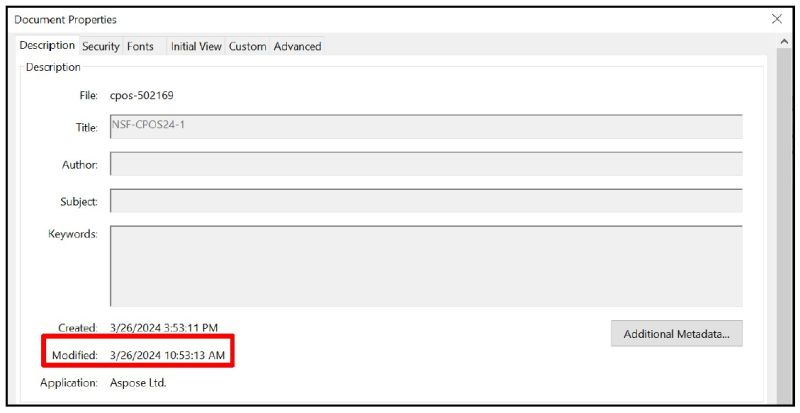
The form version and the form revision date are shown at the bottom of each page. NSF will require all senior/key personnel on potential awards to submit updated current and pending (other) support information prior to making a funding recommendation.
The date the file was last modified appears on the Description tab of the Adobe Acrobat Document Properties feature.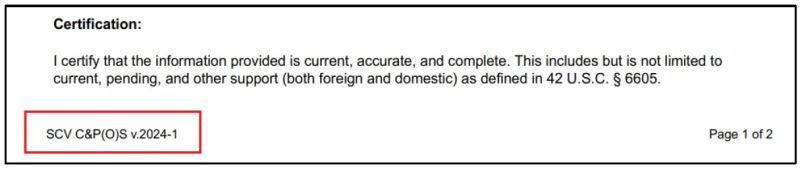
-
Will non-compliant current and pending (other) support documents receive an error message in Research.gov and Grants.gov?
Yes. Current and pending (other) support documents are tagged with identifiers indicating they were prepared in SciENcv and are the proper version. Current and pending (other) support documents not prepared in SciENcv using the proper version will trigger a compliance error message that will prevent document upload in Research.gov and Grants.gov.
-
Can current and pending (other) support PDFs generated in SciENcv prior to May 20, 2024, be uploaded in Research.gov and Grants.gov on or after May 20, 2024?
For proposals submitted to Research.gov and Grants.gov on or after May 20, 2024, including proposal file updates and any current and pending (other) support updates submitted for Research Performance Progress Reports, the uploaded current and pending (other) support PDF must be the v.2024-1 version.
-
Will SciENcv automatically convert my old current and pending (other) support document to the new version when I open it?
Yes. The system automatically converts existing current and pending (other) support documents to the new v.2024-1 version when the file is accessed.